
D-Secure Autopilot Detection
Complete User Guide & Documentation
Video Training
Product overview and operator lessons on the D-Secure YouTube channel.
About D-Secure Autopilot Detection
D-Secure Autopilot Detection identifies Windows devices that are still registered with Windows Autopilot or enrolled in Microsoft Intune (MDM). It checks a device before it is resold, redeployed or released from your facility, so that assets still tied to a previous owner's tenant are flagged early instead of being discovered by the next user.
The tool generates the device's unique Hardware ID (HWID) and queries the Microsoft cloud directly to verify the enrollment status of that specific device. Each check records the device identifiers and the final enrollment status, and produces a digitally signed, tamper-evident report that is available in the D-Secure Cloud Console.
Autopilot Detection is sold online on a pay-per-use credit basis and requires an internet connection for licensing and cloud lookups. It can be run from a bootable USB drive, over a PXE network boot, or as a Windows application.
Key Features:
- Automatic Enrollment Detection — Identifies Autopilot and Intune enrollments during device processing without manual intervention.
- Cloud Verification — Verifies enrollment and unenrollment status directly from the Microsoft cloud.
- Hardware ID & Serial Verification — Captures manufacturer, model, serial number, UUID, BIOS version and TPM status for every scan.
- No OS Dependency (USB / PXE) — The bootable workflow works on devices with corrupted, missing or inaccessible operating systems.
- Reusable Configuration Profiles — Save
.dsadprofiles with Wi-Fi, login and custom asset metadata so every technician runs an identical scan. - Parallel Processing — Check multiple devices at the same time over PXE network boot.
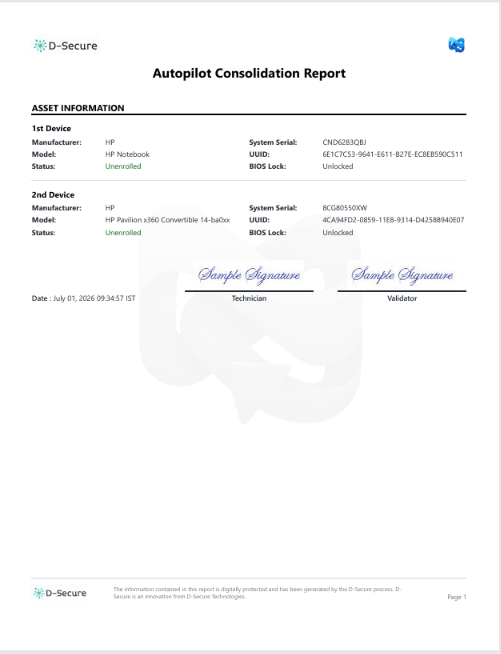
- Tamper-Evident Reports — A digitally signed PDF report with hardware IDs, device specifications, BIOS details and final enrollment status.
- ERP Connectivity — Integration with ITAD management platforms such as Makor and RazorERP; custom API integration is available on request.
Why Enrollment Detection Matters
Windows Autopilot registers a device's hardware hash with Microsoft and links it to an organization's Entra ID tenant. That record lives in Microsoft's cloud, not on the device's storage. Reinstalling Windows, resetting the device or erasing the drive does not remove it.
When a wiped device that is still registered connects to the internet, it checks in with the enrollment service, recognizes the previous owner's tenant and re-applies its management. The next user sees the previous organization's branding or sign-in screen during setup and, in locked cases, cannot get past it.
Data erasure alone is not enough:
A device can pass every erasure and diagnostic check and still be locked to its previous owner. Enrollment status has to be checked as a separate step.
Who uses it:
- ITAD vendors — Flag locked devices centrally and coordinate deregistration with clients before resale, avoiding returns, refunds and RMAs.
- Enterprise IT — Confirm retired assets are removed from Intune and Entra ID before they leave organizational control.
- Refurbishers — Prevent failed provisioning for end users and reduce RMA rates on refurbished inventory.
About the Guide
This guide explains how to obtain, license and run D-Secure Autopilot Detection, how to read its results, and what to do when a device is still enrolled.
- About D-Secure Autopilot Detection
- Why Enrollment Detection Matters
- System Requirements
- Getting Started — Downloads, bootable USB, PXE network boot and the Windows application
- Licence & Credits — Online licensing and pay-per-use credits
- Running a Check — Step-by-step scan and batch processing
- Understanding Results — Enrollment status and hardware identifiers
- When a Device Is Locked — Quarantine, deregistration and re-scan
- Reports in the Cloud Console
- Troubleshooting & FAQ
- Contact & Support
This is a web-based guide and requires an active internet connection. It can be read in all popular browsers, such as Chrome, Firefox and Safari.
System Requirements
- Target devices — Windows devices (x64). x86 (32-bit) builds are coming soon.
- Bootable workflow — An x64 bootable ISO written to a USB drive (USB 3.0 recommended) with Ventoy, or a PXE network boot environment.
- Windows application — A Windows device on which you can run the Autopilot Detection Tool (EXE).
- Internet connection — Required on every device being checked, for licence validation and the live Microsoft cloud lookup. Wi-Fi or wired network.
- D-Secure account — An account in the D-Secure Cloud Console with Autopilot Detection credits.
Internet access is mandatory:
Licensing is online only, and the enrollment status is read from the Microsoft cloud at the time of the check. A device without a working network connection cannot be checked.
Getting Started
Downloading the Tool
After purchasing credits, sign in to the D-Secure Cloud Console, open the Downloads page and select Autopilot Detection. The download card for D-Secure Autopilot Detection Tool lists the following files:
| File | Name on the Downloads page | Purpose |
|---|---|---|
| EXE | Autopilot Detection Tool | Windows application for checking a device from a running Windows installation. |
| ISO | Bootable ISO | x64 bootable image for the pre-OS (USB) workflow. Copy it to a Ventoy USB drive. |
| DSREQ | Online request file | Online request file (AutoPilot_Online.dsreq) supplied with the tool. |
| DSAPP | MDM Autopilot app | D-Secure MDM Autopilot application package. |
Not sure which file you need?
Use the ISO for the bootable USB or PXE workflow and the EXE on a running Windows installation. For questions about the request (.dsreq) and app (.DSAPP) files, contact support@dsecuretech.com.
USB Boot Mode — For manual processing of individual devices.
PXE Network Boot — Recommended for bulk volume across your local network.
Windows Application — For devices that boot into a working Windows installation.
Creating a Bootable USB (Ventoy)
USB Boot Mode is a pre-OS detection workflow for devices where running a Windows application is not practical. It uses the D-Secure Autopilot bootable ISO and Ventoy, a free tool that boots ISO files copied to a USB drive.
- Install or update Ventoy on your engineering USB drive.
- Copy the D-Secure Autopilot bootable ISO to the root of the USB drive. No sub-folders are required.
- Optional: keep your saved
.dsadconfiguration profiles available so they can be applied during the scan (see Configuration Profiles below). - Safely eject the drive. It is now ready to boot target devices.
Important:
Installing Ventoy formats the USB drive and erases its existing contents. Back up any important files before you start.
Booting the Target Device
- Insert the USB drive into the device you want to check and power it on.
- Open the manufacturer's boot menu (commonly F12, F10 or Esc, depending on the manufacturer) and select the USB drive.
- In the Ventoy menu, select the D-Secure Autopilot ISO to launch the D-Secure application directly.
- Connect the device to the internet (Wi-Fi or wired network) when prompted, or apply a
.dsadprofile that contains your Wi-Fi settings.

PXE Network Boot
PXE network boot is supported and is the recommended mode for bulk volume. Devices boot the detection environment from your local network instead of a USB drive, so many assets can be checked at the same time, increasing your facility's daily throughput.
Once a device has booted over PXE, the check proceeds exactly as in USB Boot Mode. Each device still needs internet access for licensing and the cloud lookup.
Setting up PXE:
For help adding the D-Secure Autopilot image to your PXE environment, contact support@dsecuretech.com.
Running the Windows Application (EXE)
The Autopilot Detection Tool EXE runs on a device that starts into a working Windows installation. Download it from the Downloads page, copy it to the device you want to check and run it. Make sure the device has an internet connection before you start the scan.
For devices whose operating system is corrupted, missing or inaccessible, use the bootable USB or PXE workflow instead.
Licence & Credits
Autopilot Detection uses pay-per-use credits. Credits are purchased online and held in your D-Secure account. Current credit packs and prices are listed on the pricing page.
- Online licensing only — The tool validates your licence online, so an internet connection is required.
- Separate from erasure licences — Autopilot Detection credits are separate from Drive Eraser and File Eraser licences.
- Account-based — Sign in with your D-Secure account, or apply a
.dsadprofile that contains your login, so credits and results stay linked to your Cloud Console.
Bulk processing:
For large volumes or custom integrations, use the contact form on the product page to talk to our team.
Running a Check
Step-by-Step Scan
- Start the tool — Boot the device from USB or PXE, or run the Windows application.
- Hardware detection — The application automatically identifies the device's hardware, BIOS and TPM details and generates its Hardware ID.
- Apply a configuration — A saved
.dsadprofile can be applied automatically, or you can select one manually for the batch. Otherwise, connect to the network and sign in. - Scan for Autopilot — Start the scan. The tool runs a live Microsoft Autopilot enrollment lookup with no further manual steps.
- Verify and move on — The enrollment status is shown alongside the serial number and model. Confirm that they match the physical device, then process the next unit.
Configuration Profiles (.dsad)
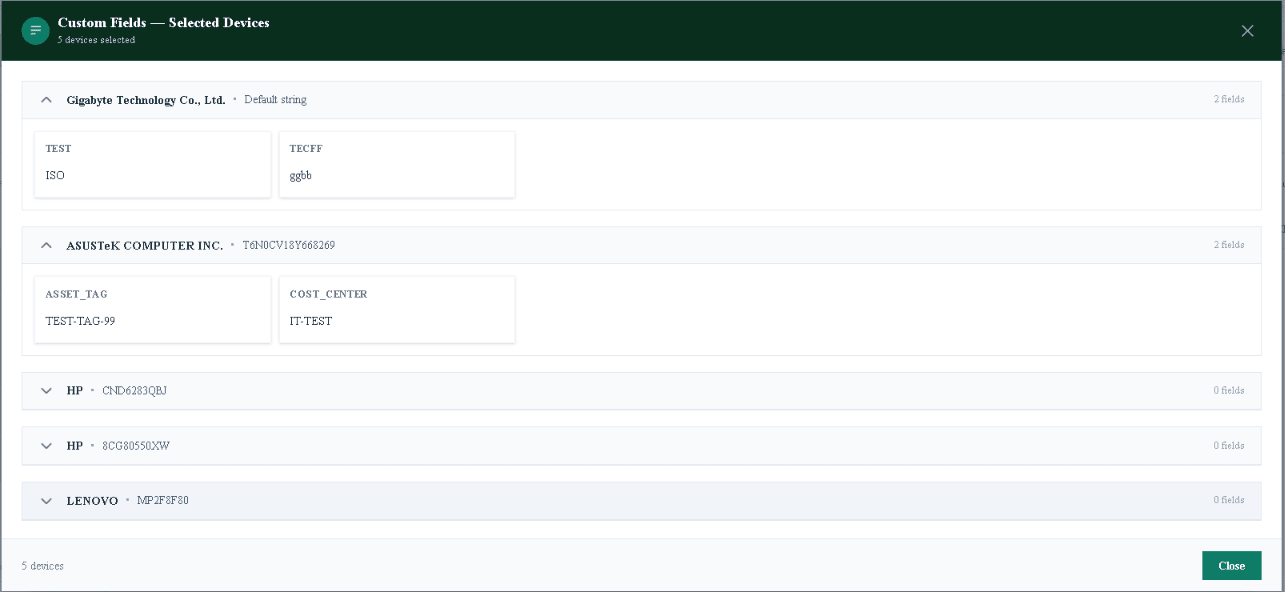
A .dsad configuration profile stores the settings a technician would otherwise enter on every device, so each scan in a batch runs the same way:
- Wi-Fi settings — so the device connects to the internet automatically.
- Login — your D-Secure account details for online licensing.
- Custom asset metadata — fields such as
asset_tagandcost_centerthat are recorded with the result.

Where the Check Fits in Your Workflow
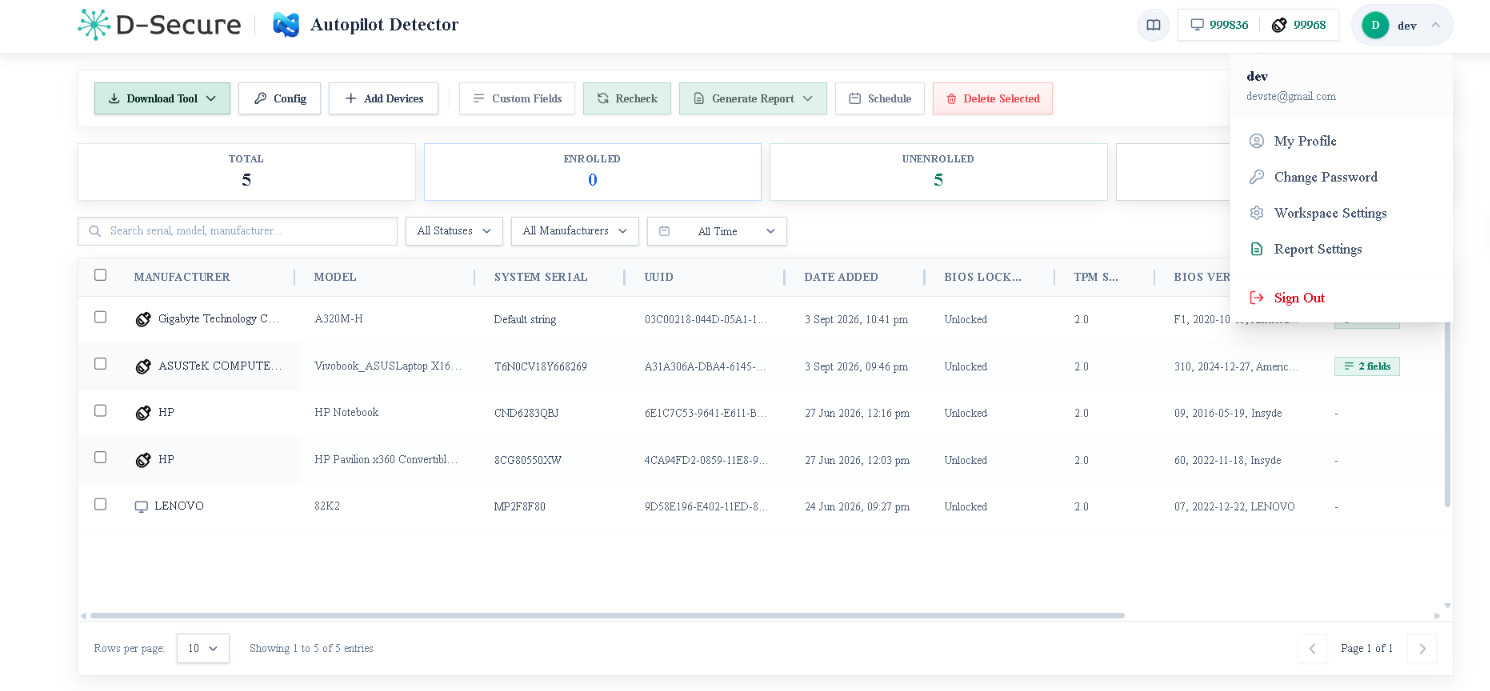
An enrollment check works best as a fixed checkpoint rather than an occasional spot-check. Run it at intake, before you spend time on erasure and grading, so locked units are flagged early:
- Intake and inventory — log every device by serial number.
- Autopilot detection scan.
- Quarantine any device that is still enrolled or locked.
- Send the client a deregistration request for those serial numbers.
- Erase data with D-Secure Drive Eraser.
- Re-scan before release to confirm deregistration has cleared.
- Grade, test and release only devices with a clean status.
Understanding Results
Enrollment Status
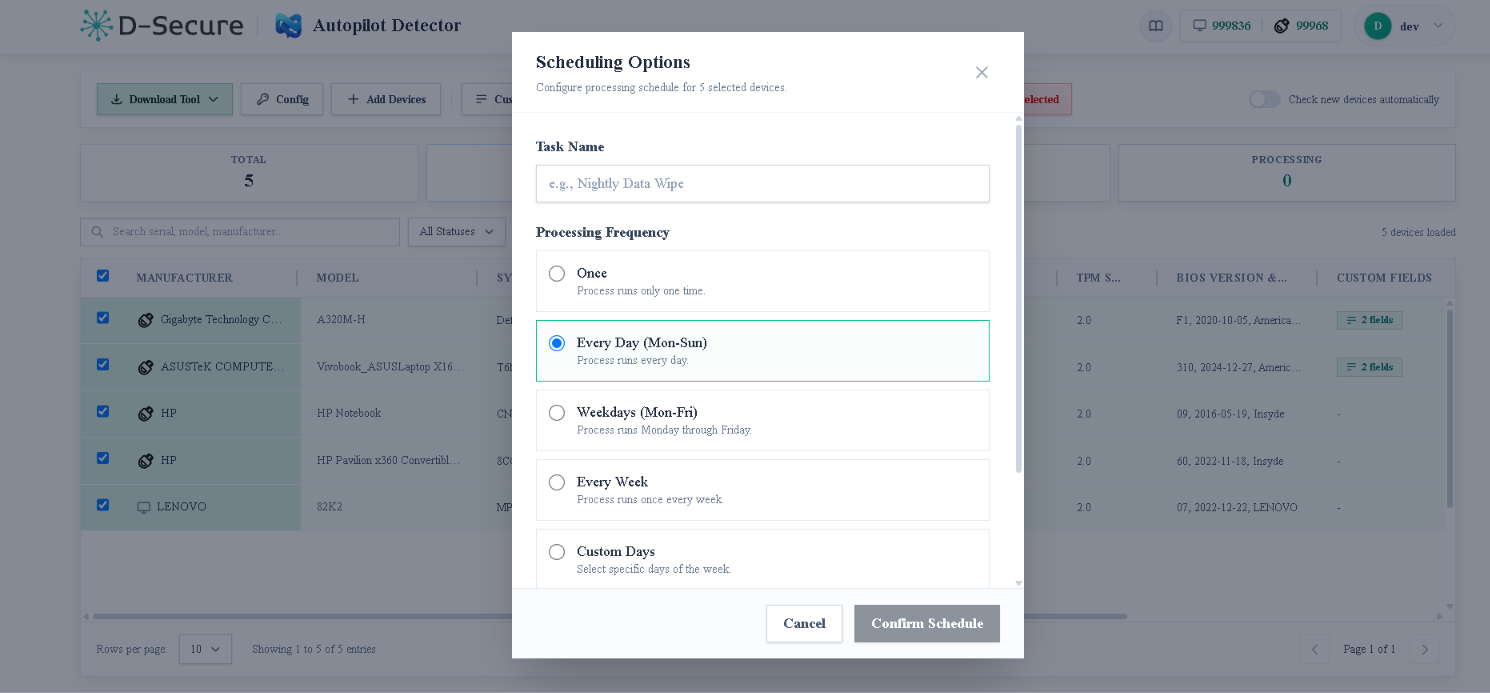
After the cloud lookup, the device's enrollment status is displayed together with its serial number and model:
| Status | Meaning | Next step |
|---|---|---|
| Unenrolled | The device is not registered with Windows Autopilot or enrolled in Intune for any tenant. | Continue with erasure, grading and release. |
| Enrolled | The device is still registered to an organization's tenant and will re-apply that organization's management when it connects to the internet. | Quarantine and request deregistration (see When a Device Is Locked). |
| Locked | The enrollment prevents a new user from completing setup without the previous organization's cooperation. | Quarantine and request deregistration before any resale. |

Hardware ID & Device Identifiers
Every scan records the identifiers that tie the result to one physical device:
- Hardware ID (HWID) — generated automatically and used for the Microsoft cloud lookup.
- Manufacturer, model and serial number
- UUID
- BIOS version
- TPM status
- Tenant ID and enrollment profile details — where the device is enrolled.
Always compare the serial number shown on screen with the label on the device before you file the result.
When a Device Is Locked
Autopilot Detection is a detection tool. It does not remove an enrollment. Deregistration is an administrative action that only the following parties can perform:
- The organization that registered the device, through its Microsoft Intune admin center.
- Microsoft support, with verified proof of ownership (for example an invoice or service tag), if the original organization cannot be reached.
- The OEM or Cloud Solution Provider partner that originally registered the device on the organization's behalf, in some cases.
Recommended handling:
- Quarantine the device, separate from resale-ready inventory.
- Send the client a specific list of the serial numbers that are still enrolled and ask them to deregister those devices.
- The client follows Microsoft's full sequence: unenroll the device from Intune, delete the Autopilot record, and remove any on-premises Active Directory object so it does not sync back. Deleting the Autopilot record alone can leave orphaned objects in Intune and Entra ID.
- Re-scan the device with Autopilot Detection to confirm the deregistration has cleared in the cloud. Do not rely on verbal confirmation alone.
- Release the device only when the status is clean.
For enterprises preparing devices for ITAD:
Before handing devices over, you can check status locally with Get-WindowsAutopilotInfo or dsregcmd /status, deregister retiring devices in Intune, and provide your ITAD partner with a clean serial manifest.
Reports in the Cloud Console
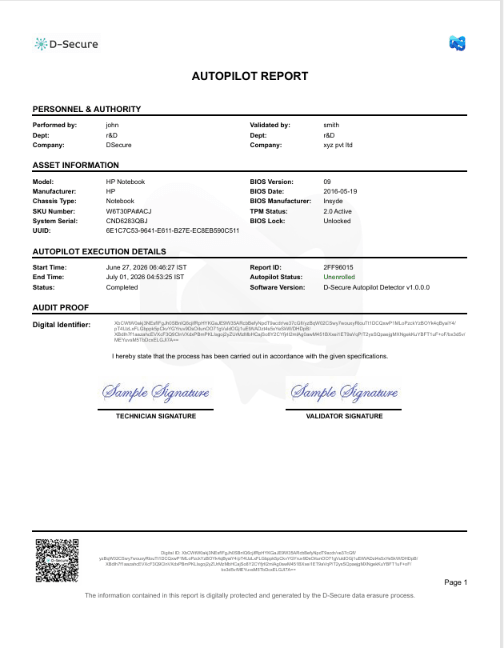
After every scan, a digitally signed, tamper-evident PDF report is generated. It contains:
- Hardware IDs and device specifications
- BIOS details
- The final enrollment status
- A timestamp and digital signature for the verification
Results are sent to the D-Secure Cloud Console, where you can review them alongside your other D-Secure reports. A re-scan after deregistration produces a new report, giving you a record of the device's release from the previous owner's control for your audit file.
Per-device record — each report is tied to a serial number and Hardware ID.
Central access — reports are available in your Cloud Console account.
Troubleshooting & FAQ
Common Issues
- The scan cannot start or licensing fails — Check that the device has a working internet connection (Wi-Fi or wired) and that your account has Autopilot Detection credits. Licensing is online only.
- Unstable network connection — The tool retries automatically on unstable connections. If the lookup still fails, move the device to a more reliable network and run the scan again.
- The device does not boot from the USB drive — Select the USB drive from the manufacturer's boot menu (F12, F10 or Esc on most devices), and check that the ISO was copied to the root of the Ventoy drive.
- The device shows Enrolled after the client says it was released — Ask the client to confirm that the full Intune sequence was completed (unenroll, delete the Autopilot record, remove the on-premises AD object), then re-scan.
- 32-bit (x86) devices — The bootable ISO is x64. x86 builds are coming soon.
Frequently Asked Questions
Does a factory reset or data erasure remove Autopilot enrollment?
No. The enrollment is tied to the device's hardware hash and recorded in Microsoft's cloud against the organization's Entra ID tenant, not on the drive.
Can Autopilot Detection remove an enrollment?
No. It detects and records the status. Only the registering organization, Microsoft support with proof of ownership, or the original OEM/partner can deregister the device.
Can I check many devices at once?
Yes. PXE network boot lets you check multiple devices at the same time, and .dsad profiles keep every scan in a batch consistent.
Does the device need a working operating system?
Not for the bootable USB or PXE workflow, which works on devices with corrupted, missing or inaccessible operating systems. The EXE needs a running Windows installation.
Do I need separate credits for Autopilot Detection?
Yes. Autopilot Detection uses its own pay-per-use credits, separate from erasure licences. See the pricing page.
Can I run a check without an internet connection?
No. Both licensing and the enrollment lookup take place online.
Where can I read more?
See Autopilot & MDM Checker for ITAD and MDM Detection and Device Processing.
Contact & Support
Email: support@dsecuretech.com
Website: www.dsecuretech.com
Product page: D-Secure Autopilot Detection